Hosted Dolt: Cloning a Hosted Database#
How it works#
In some cases you might want to clone your database from Hosted so that you can access Dolt’s command line interface. While much of the command line is available in SQL there are some CLI-specific features that can be helpful for debugging your database offline.
In order to clone from Hosted, we needed to add support for exposing the databases on a Hosted sql-server as a read-only remotesapi endpoint. When you run sql-server with this configuration, it will:
- Listen on an indicated port and serve read-only remotesapi traffic on that port
- Use any server-side TLS associated with the sql-server itself as part of that listener
- Use the deployment’s user and password in the sql-server config as password authentication credentials for accessing the exposed data
Once you allow the remotesapi to be exposed for your Hosted deployment (available only for
deployments with Web PKI certificates), you can simply set a DOLT_REMOTE_PASSWORD
environment variable and provide a username to the dolt clone command. You’ll see these
instructions in the Connectivity tab of your deployment page.
Example#
When you’re using Hosted as your production database, there might be some performance-heavy operations or tests you want to run in isolation so you don’t impact production, such as beta testing a considerable schema migration or running a big analytics query. Clone makes it easy to get a local copy of your Hosted database with one command. Do whatever potentially destructive or performance-degrading operations on your laptop while respecting your production database.
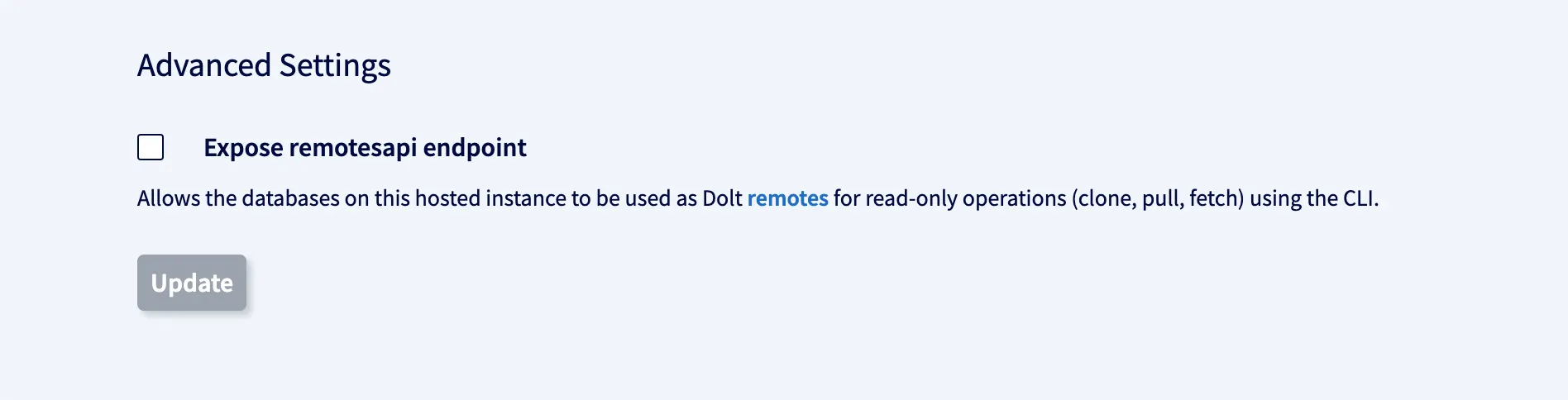
1. Expose remotesapi endpoint#
In order to enable cloning from your Hosted database, first expose the remotesapi endpoint. This will set the port for a server which can expose the databases in the sql-server over remotesapi.
Note that this will only work for deployments that use a Web PKI certificate.
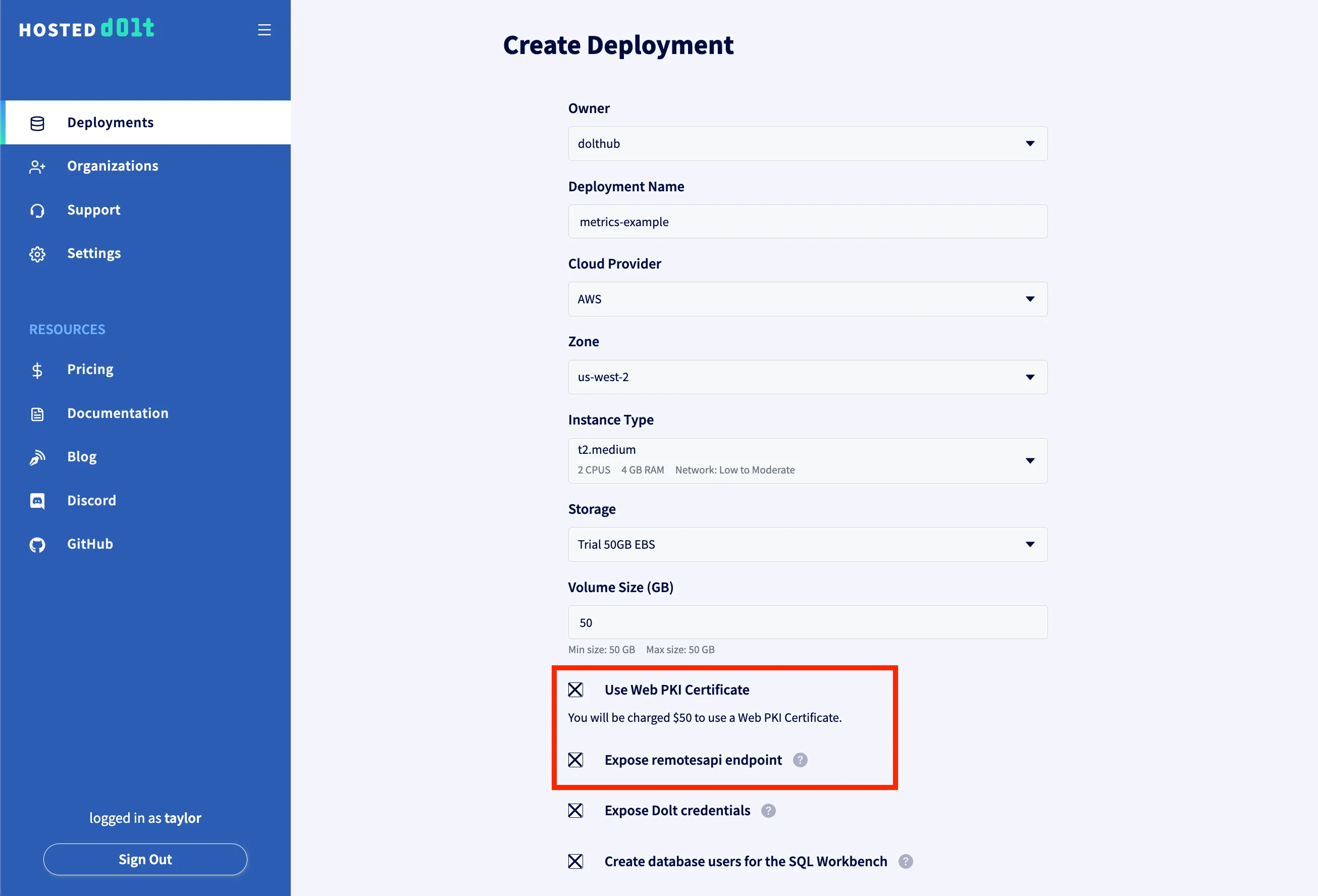
Check both the “Use Web PKI Certificate” and “Expose remotesapi endpoint” when creating a deployment will also work.
2. Set remote password and run clone command with user flag#
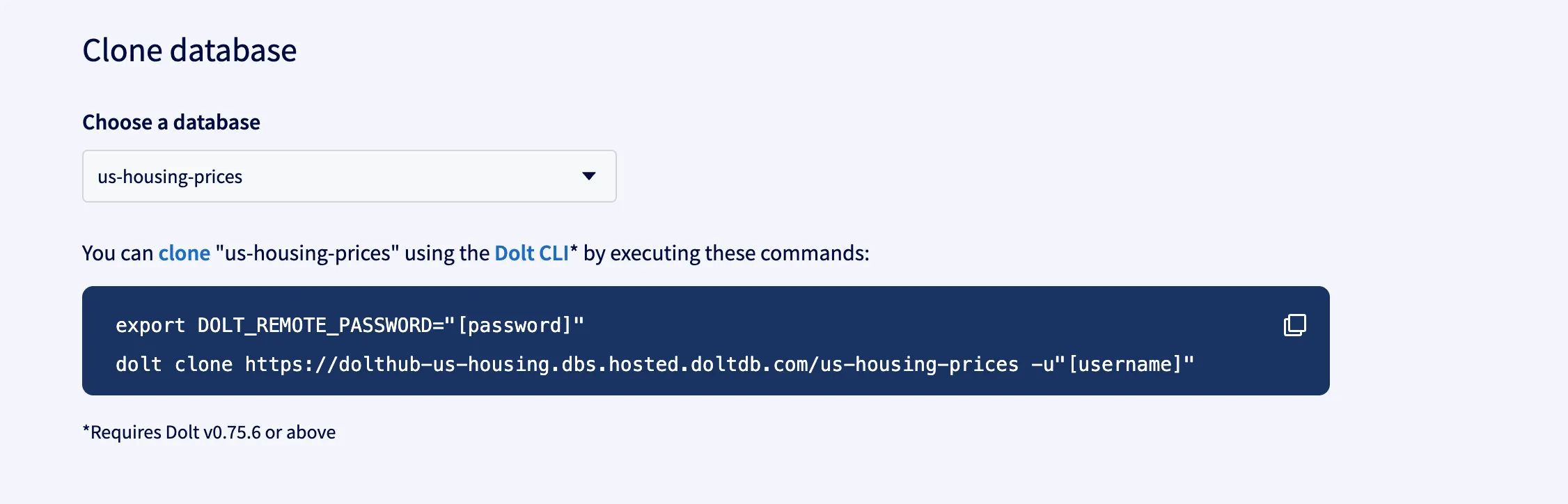
To authenticate against it, you have to set a DOLT_REMOTE_PASSWORD environment variable
and pass along a --user flag to the dolt clone command. You can find these
instructions in the Connectivity tab on your deployment page.
If you’d like to allow other SQL users to clone without giving them access to your Hosted
admin username and password, you can grant them CLONE_ADMIN privileges.
CREATE USER "[username]"@"[host]" IDENTIFIED BY "[password]";
GRANT CLONE_ADMIN ON *.* TO "[username]"@"[host]";
A few things worth calling out, since they trip people up:
- The SQL user has to exist first. Hosted account collaborators (the people you add
on the deployment’s Settings tab) are a separate namespace from the SQL users on the
database itself — adding someone as a collaborator does not create a SQL user for them.
Run the
CREATE USERabove, then share that username and password with them. CLONE_ADMINcovers the whole local-clone workflow, not justdolt clone. Despite the name, granting it lets the user clone the database,fetch/pullupdates, and push new branches up to the deployment — everything needed to prepare a pull request from a local copy. It does not let them push to a branch they don’t have write access to (see Branch permissions below). The end-to-end flow runs through sections 2–5 below: clone, sync, push a feature branch, open a PR.
After running the dolt clone command, you should have a local copy of your Hosted
database.
% dolt clone https://dolthub-us-housing.dbs.hosted.doltdb.com/us-housing-prices --user "username"
cloning https://dolthub-us-housing.dbs.hosted.doltdb.com/us-housing-prices
% cd us-housing-prices
% dolt sql -q "select count(*) from sales"
+----------+
| count(*) |
+----------+
| 13844603 |
+----------+
3. Sync your local copy with upstream changes#
Now we can run whatever queries or schema migrations we want without affecting production.
If there are updates to the database, easily sync your local copy using dolt fetch or dolt pull.
Assuming your password environment variable is still set, you can authenticate these
commands to your remotesapi endpoint in the same way by passing the --user flag:
% dolt pull --user "[username]"
% dolt fetch --user "[username]"
4. Sync your upstream with changes from local copy#
If you make any changes on your local copy, you can push them to your upstream using
dolt push. Push to a feature branch rather than
straight to main so that your change can be reviewed via a pull request before it
lands — see the next section.
% dolt checkout -b my-change
% # ...edit, dolt add, dolt commit...
% dolt push origin --user "[username]" HEAD:my-change
You can also push straight to main if you’d rather skip review, subject to any
branch permissions configured on the deployment:
% dolt push origin --user "[username]" HEAD:main5. Open a pull request#
Hosted Dolt doesn’t have forks — that’s a DoltHub and DoltLab feature. To contribute
a change for review, push a feature branch to the deployment (as in step 4 above) and
then open the pull request from the workbench: open the deployment’s Workbench
tab, click into the database, go to the Pull Requests tab, and click
Create Pull Request. Pick your branch as the “from” branch and main (or wherever)
as the “to” branch. The detailed workbench flow is documented in
Creating a pull request.
Pull requests on Hosted can only be opened and merged from the web workbench — the SQL/CLI surface doesn’t expose a “create PR” operation today. The push itself can come from anywhere (CLI, agent, automation); only the PR ceremony is web-only.
That split exists because pull requests are an artifact of the workbench, not part of the Dolt database itself — the same distinction as GitHub PRs vs. Git branches. The branches and commits a PR proposes are real Dolt objects and travel with the database if you clone it; the PR itself (title, description, comments, open/merged state) is workbench metadata and stays behind.
Branch permissions#
If you want some collaborators to be able to push feature branches but not push to
main (the most common reason to set up CLONE_ADMIN users in the first place), the
Workbench tab has a Branch Permissions UI that lets you scope who can write to which
branch patterns. The launch blog covers the model and the UI:
Hosted Branch Permissions.