

DumboDB is one of four version-controlled databases developed by DoltHub. It is a document database that allows users to branch and merge their data just as they would with their source code. We are excited to announce that DumboDB now supports MongoDB Compass, the graphical user interface for MongoDB.
Running existing third-party tools on top of our databases has been a key mechanism for ensuring that our databases are drop-in compatible with the databases they emulate. Similarly, making sure data dumps from users’ databases successfully import into our databases has also been an ongoing effort for the same reason. If we are going to claim that our databases are drop-in compatible, we need to do our best to actually “drop” them in so that our users are delighted rather than frustrated.
DumboDB is our newest database, and until now all of our testing has been performed with the drivers provided by Mongo. While this has let us get started, we knew that we couldn’t claim to be drop-in compatible without some more testing. We still have a way to go in that regard, but the first step was to get MongoDB Compass, the workspace GUI provided by Mongo, working with DumboDB.
With the latest release of DumboDB, users can now connect to their DumboDB instances using MongoDB Compass.
MongoDB Compass#
MongoDB Compass is a free graphical user interface for MongoDB that allows users to visualize and interact with their data. It’s similar to Dolt’s Workbench or AWS DynamoDB’s NoSQL Workbench. These tools are all designed to make it easier for users to interact with their databases, alleviating the need to use command-line tools for every interaction.
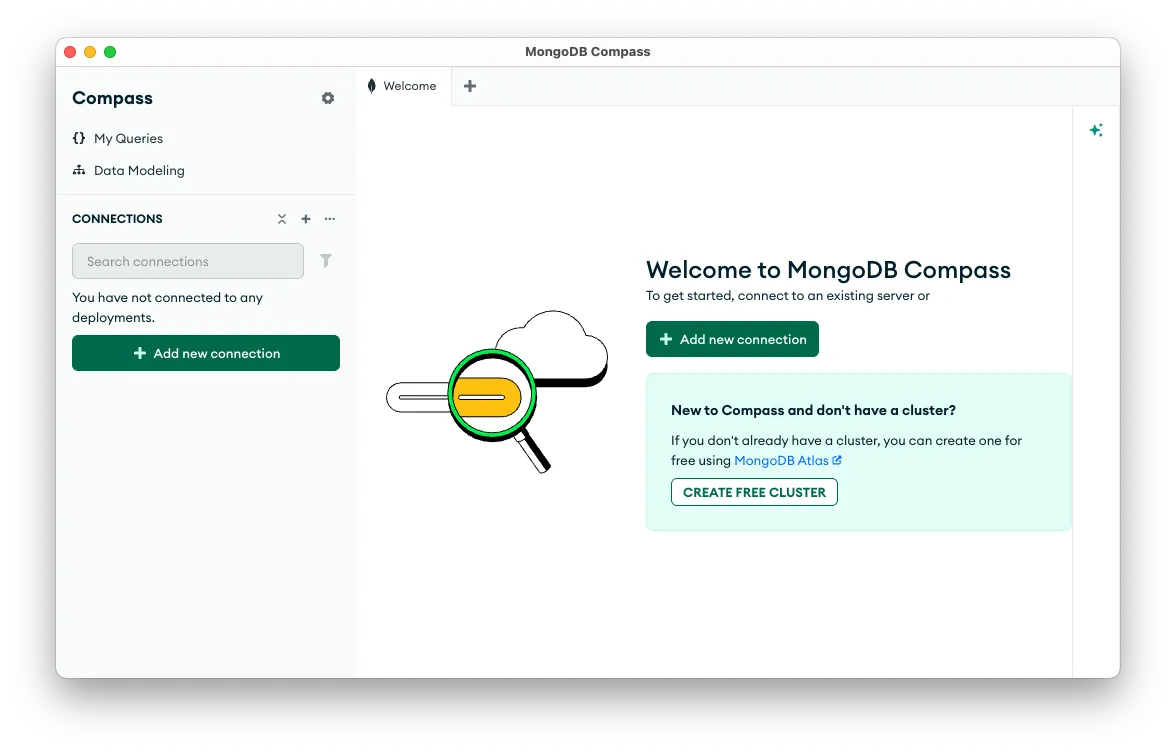
After you download MongoDB Compass for your platform, you can start it and see something like this:
Running DumboDB#
Before you can connect Compass to DumboDB, you need a running instance of DumboDB. You can download the latest release of DumboDB from our GitHub releases page, run our Docker image, or build it from source.
If you installed the binary, you can start DumboDB with the following command (substituting the path to your data directory):
dumbodb --data-dir /path/to/dataOr if you installed the Docker image, you can start DumboDB with the following command (substituting the path to your data directory):
docker run -p 27017:27017 \
  -v /path/on/host:/var/lib/dumbodb \
  dolthub/dumbodb:latest
Connecting MongoDB Compass to DumboDB#
Once your DumboDB server is running, click the Add new connection button in Compass:
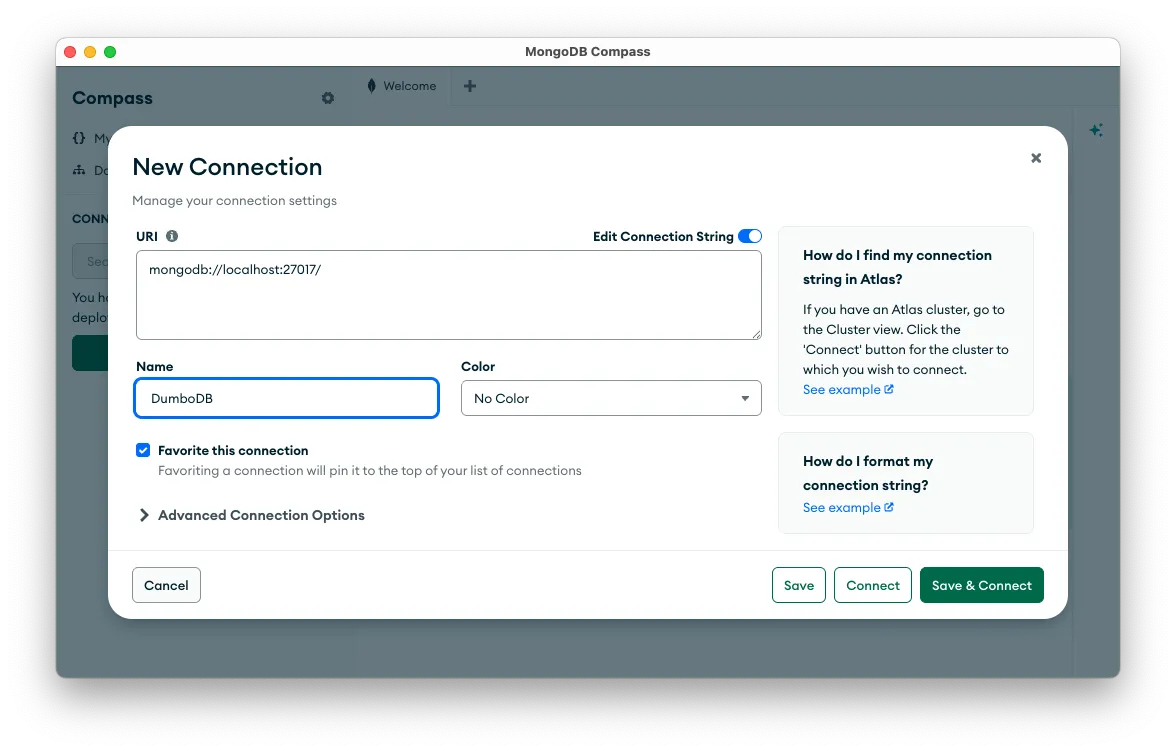
You can use the default URI provided and set the name to whatever you like. I’m biased, but you can smash that “Favorite this connection” button if you want to. When all that is done, hit “Save & Connect.”
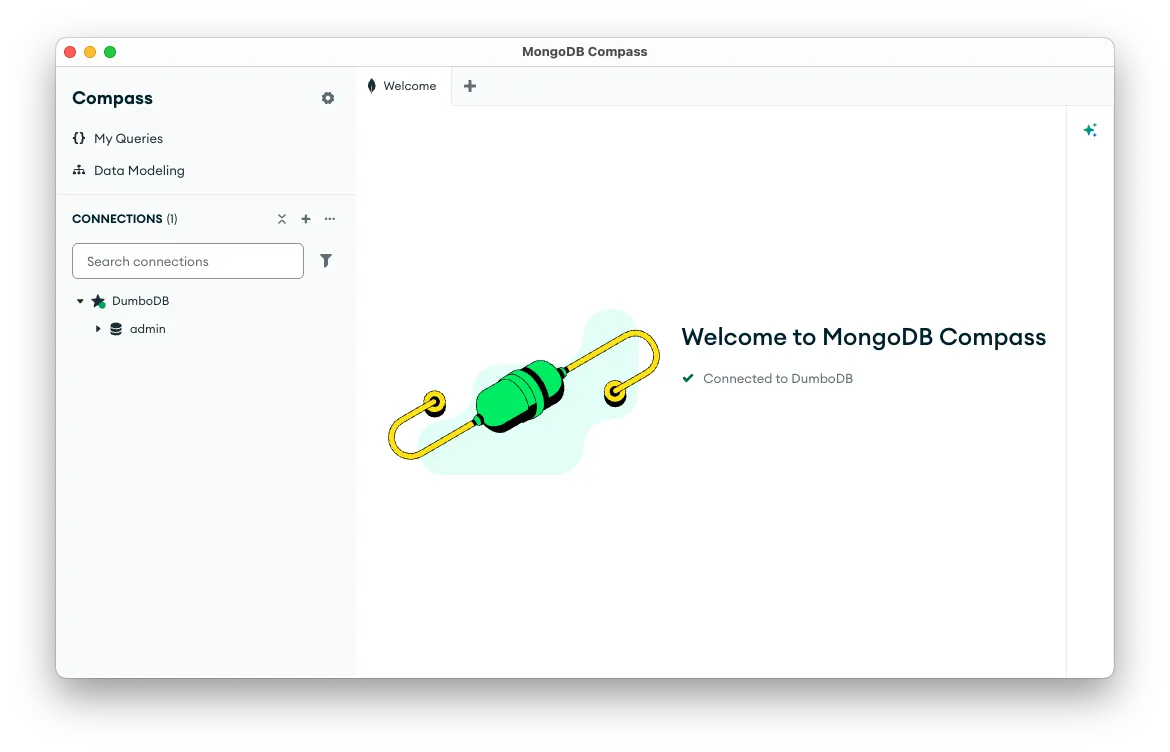
You should see this if everything is working:
Creating a Database and Collection#
Now that you’re connected to DumboDB, you can create a new database and collection. If you hover your mouse over the DumboDB connection in the left sidebar, you’ll see a + button:
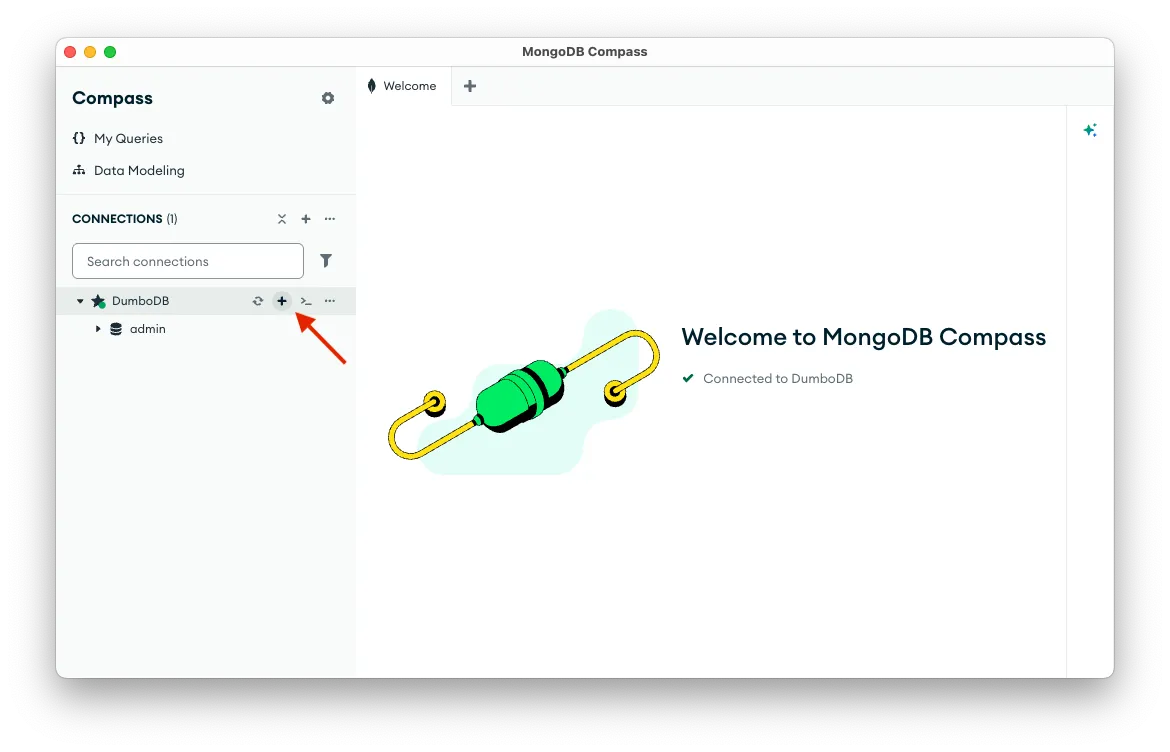
Click that and give your database a name. MongoDB, and therefore DumboDB, doesn’t have a concept of creating an empty database, so you need to create a collection as well. For this demo, I’ll create an “Inventory” database with a “products” collection:
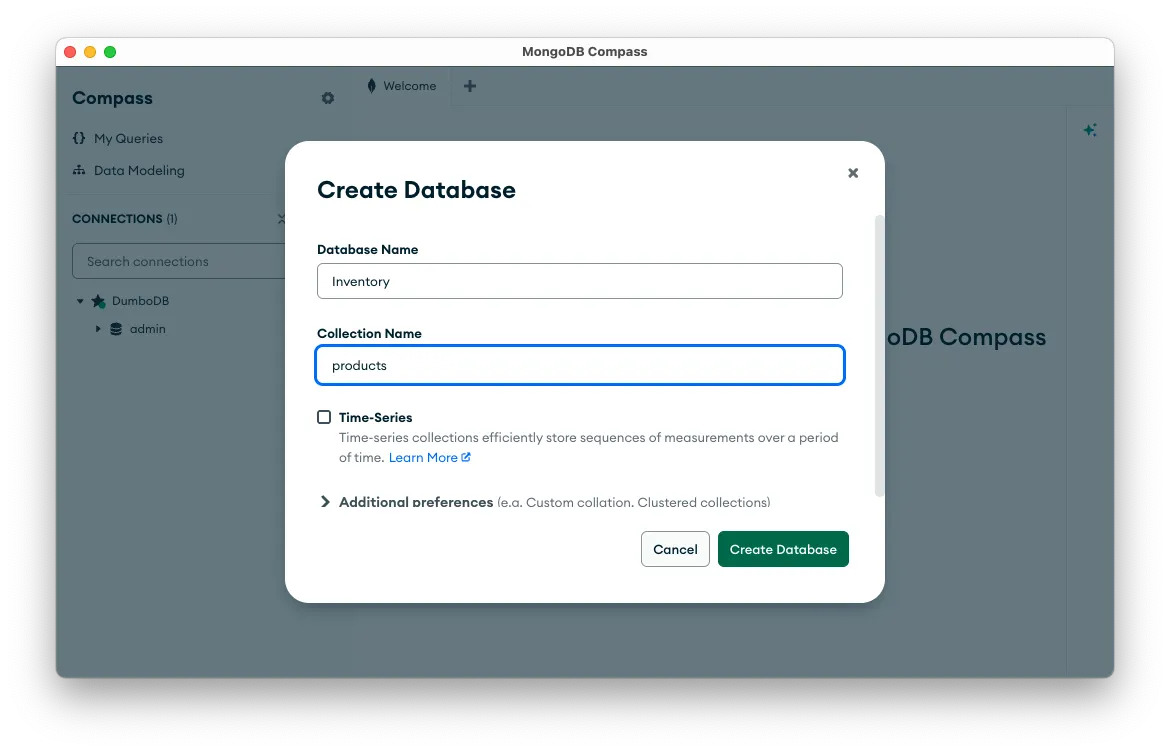
Assuming all went well, you should see the following:
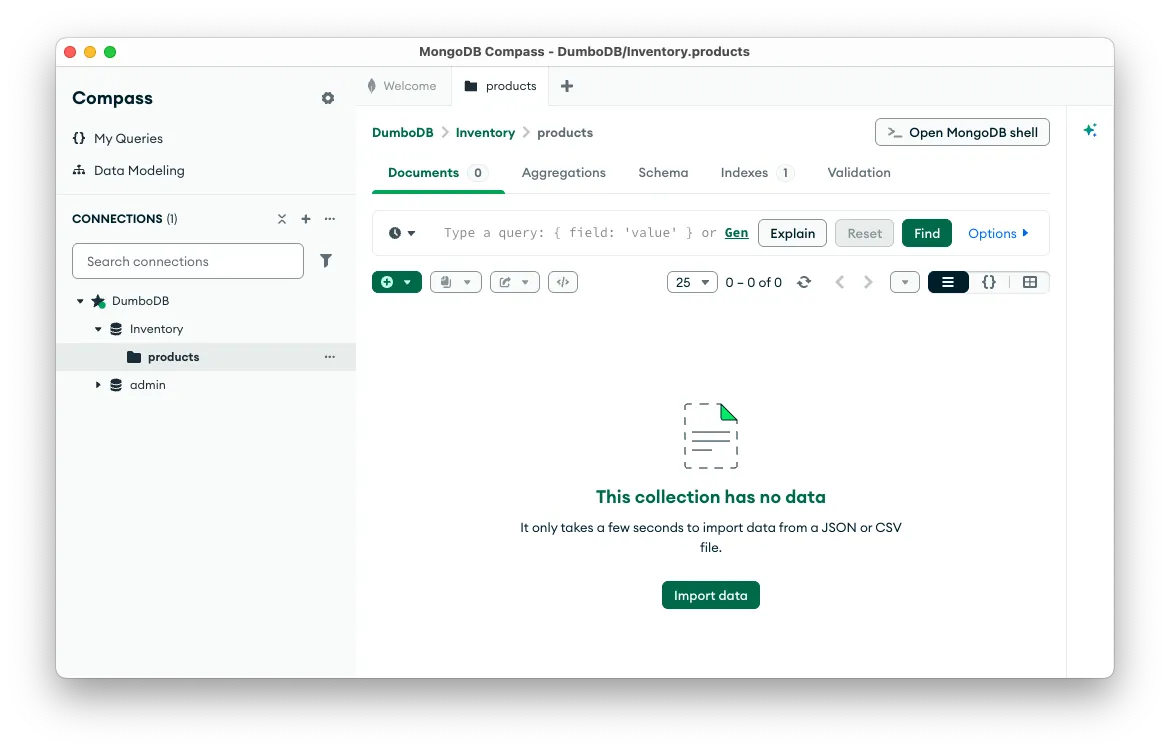
Importing Data#
Now that you have a database and collection, you can import some data. I have a small CSV file with some product data that I want to import into my “products” collection. You can see my example file here:
Name,Price,Quantity,Category
Premium Kibble for Large Dogs,59.99,85,Food
Cat Nip Infused Scratching Post,29.95,40,Toys
Squeaky Chew Toy Bone,9.99,120,Toys
Orthopedic Memory Foam Pet Bed,74.50,30,Bedding
Adjustable Reflective Dog Harness,19.99,150,Accessories
To import this, click the Import Data button, select your files, and you’ll see a preview of your import.
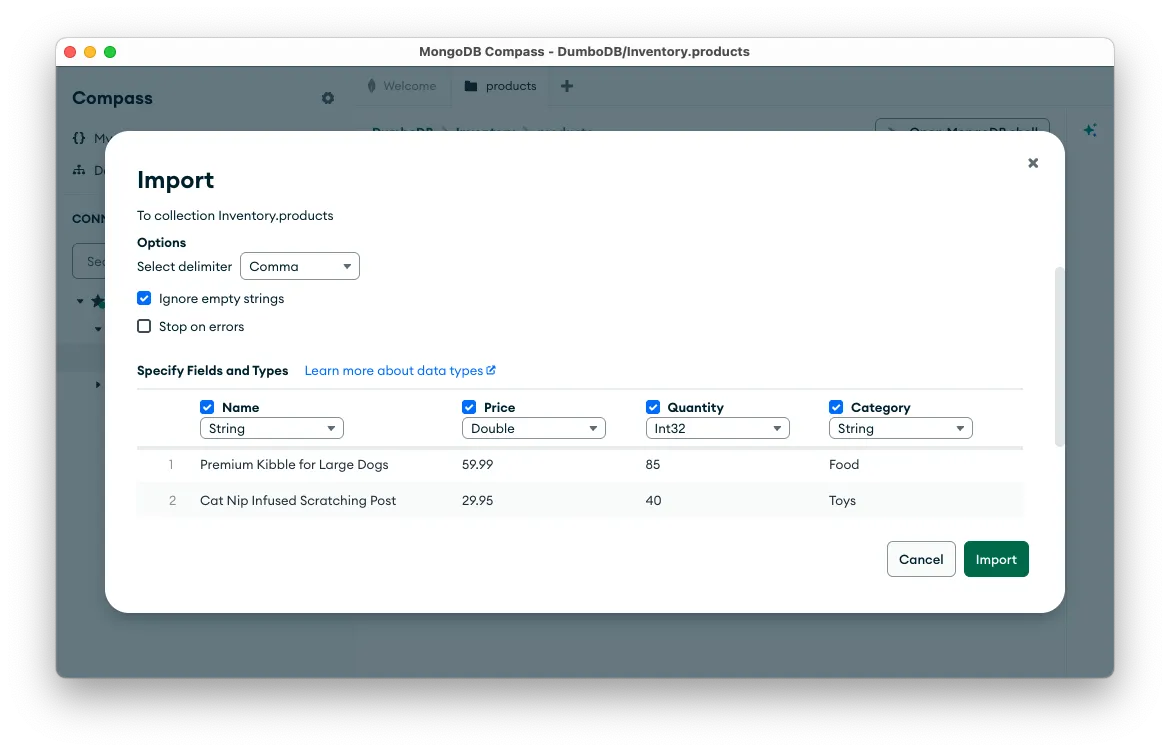
It will auto-detect the type of each column, but you can adjust it if you need to. When you’re ready, hit the Import button and your data will be imported into your collection:
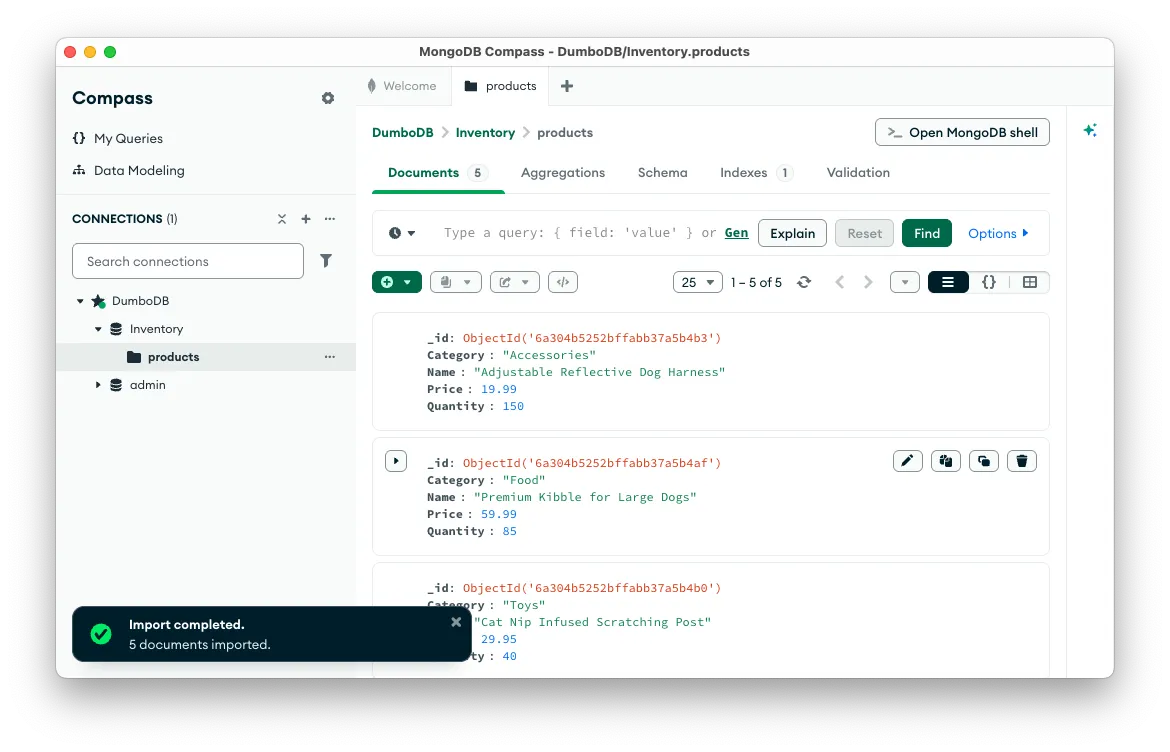
Committing Your Changes#
Now that you have some data in your collection, you can commit your changes. This is where DumboDB deviates from the features exposed in Compass. In order to commit, you need to use the built-in shell. You can open the shell by clicking the Open MongoDB shell button:
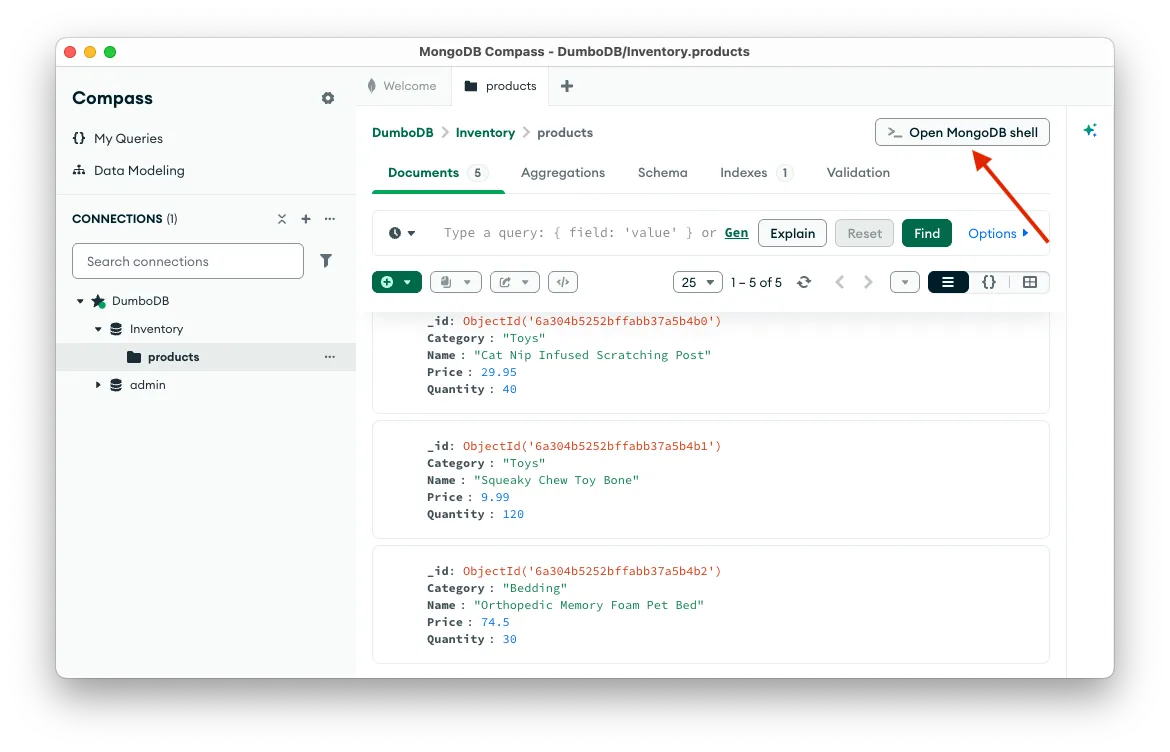
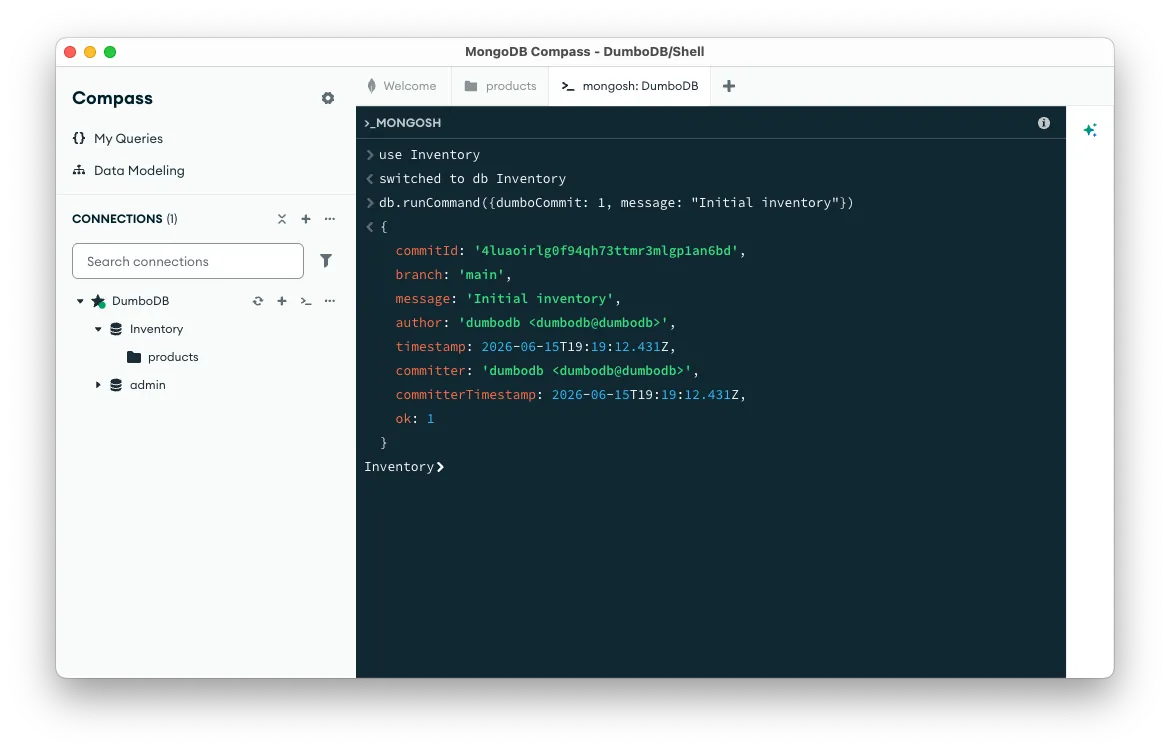
In the prompt, you can run the following command to commit your changes:
db.runCommand({dumboCommit: 1, message: "Initial inventory"})This will create a new commit, which will look like this:
Modify Data and See Changes#
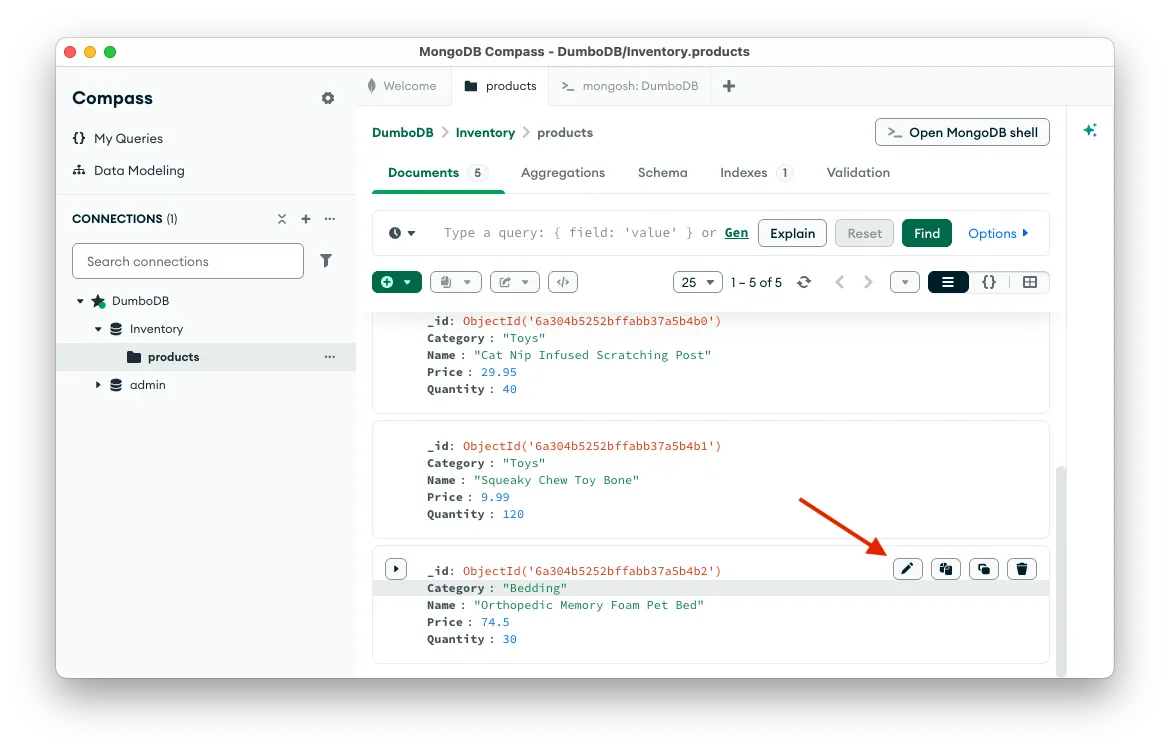
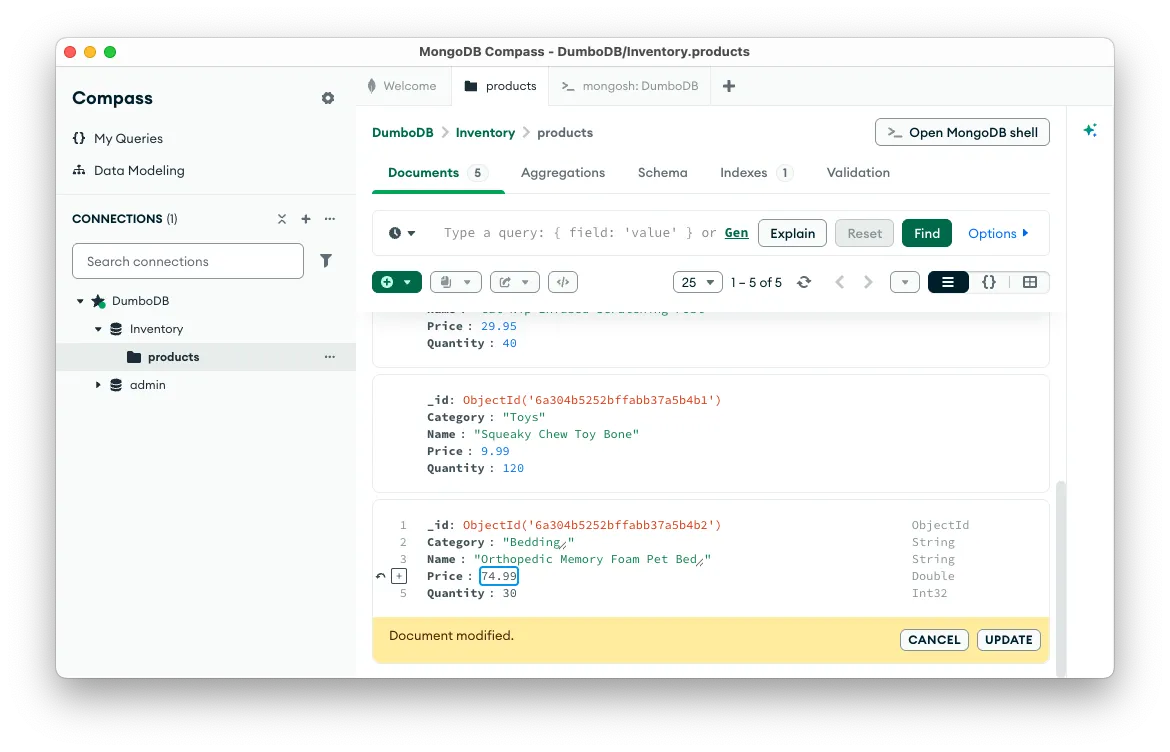
After moving back to the products collection by clicking the tab at the top, you can modify some data. For example, I want to adjust the price of the “Orthopedic Memory Foam Pet Bed” to 74.99. I can click the pencil icon next to the price and make my change:
Smash that Update button, and your change will be made:
In order to see the changes you’ve made, hop back to the shell and run the following command:
db.runCommand({dumboDiff: 1})This will show you the changes you’ve made since your last commit:
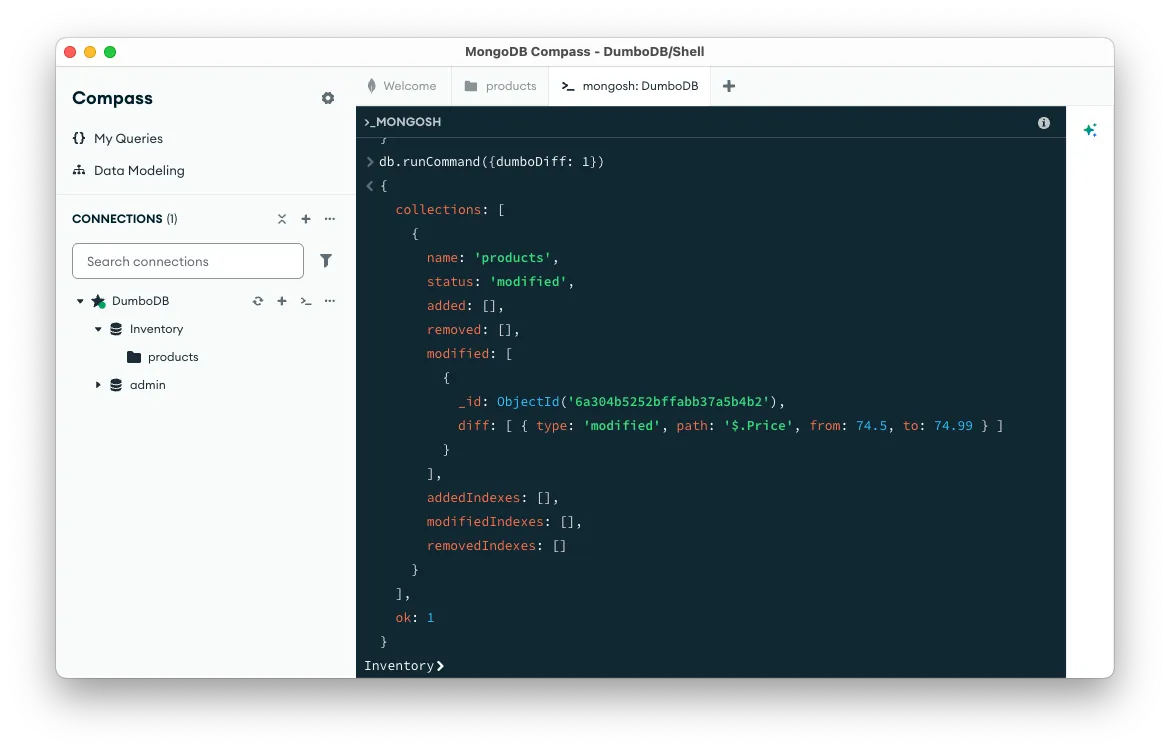
One Gotcha: Connecting to a Specific Branch#
By default, when you connect to DumboDB, you are connected to main. If you create a new branch using the dumboBranch command, there is no way to use your existing Compass connection to connect to that branch. You need to create a new connection with the database and branch specified in the URI. It’s even a little trickier than that, because the @ symbol needs to be URL-encoded as %40. So if you wanted to connect to a branch named feature, your URI would look like this:
mongodb://localhost:27017/Inventory%40feature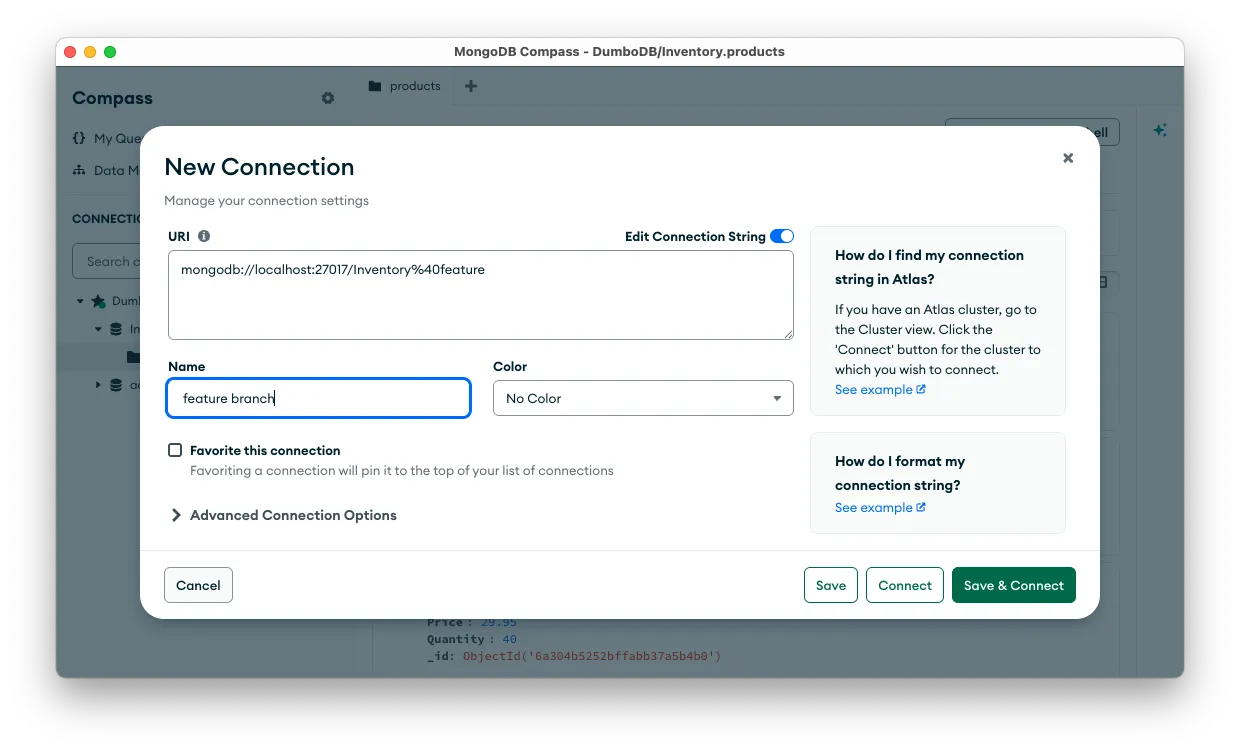
Version Control Your Data#
If you are familiar with Git, the version-control features of DumboDB will feel familiar. You can create branches, merge branches, and even revert to previous commits. This is all done through the shell because Compass doesn’t have any native support for these features, but hopefully you can see how powerful this is for your data. The list of commands is here, and you can find more details on each command in our documentation:
| Command | Description |
|---|---|
dumboCommit | Commit the current working set with a message and author |
dumboBranch | Create or delete a branch |
dumboMerge | Merge a source branch into the current branch |
dumboCherryPick | Apply one commit’s diff onto the current branch |
dumboRebase | Reapply branch commits onto another branch tip, rewriting history |
dumboLog | Return commit history for the current branch |
dumboStatus | Show summary of uncommitted changes on the current branch |
dumboDiff | Document-level diff between two states |
dumboReset | Move branch HEAD to a target commit (soft or hard) |
dumboRevert | Revert a commit, creating a new inverse commit |
dumboConflicts | List or inspect conflicts from an in-progress merge/cherry-pick/rebase |
dumboResolveConflict | Resolve a single document conflict (ours / theirs / custom) |
dumboTag | Create, list, or delete tags at specific commits |
dumboGC | Run garbage collection on the database’s chunk store |
We’d Love to Hear from You!#
User feedback is critical to our development process, and we want to make sure that we are building the features our users want. We haven’t received a flood of feedback, but we have a full-time engineer devoted to working on DumboDB. That means you could have that engineer’s full attention and probably even influence the roadmap if you have feedback to share. Try it out!

Want to learn more about Dolt and Dumbo? Hop on our Discord to ask questions and nerd out about version-controlled databases!